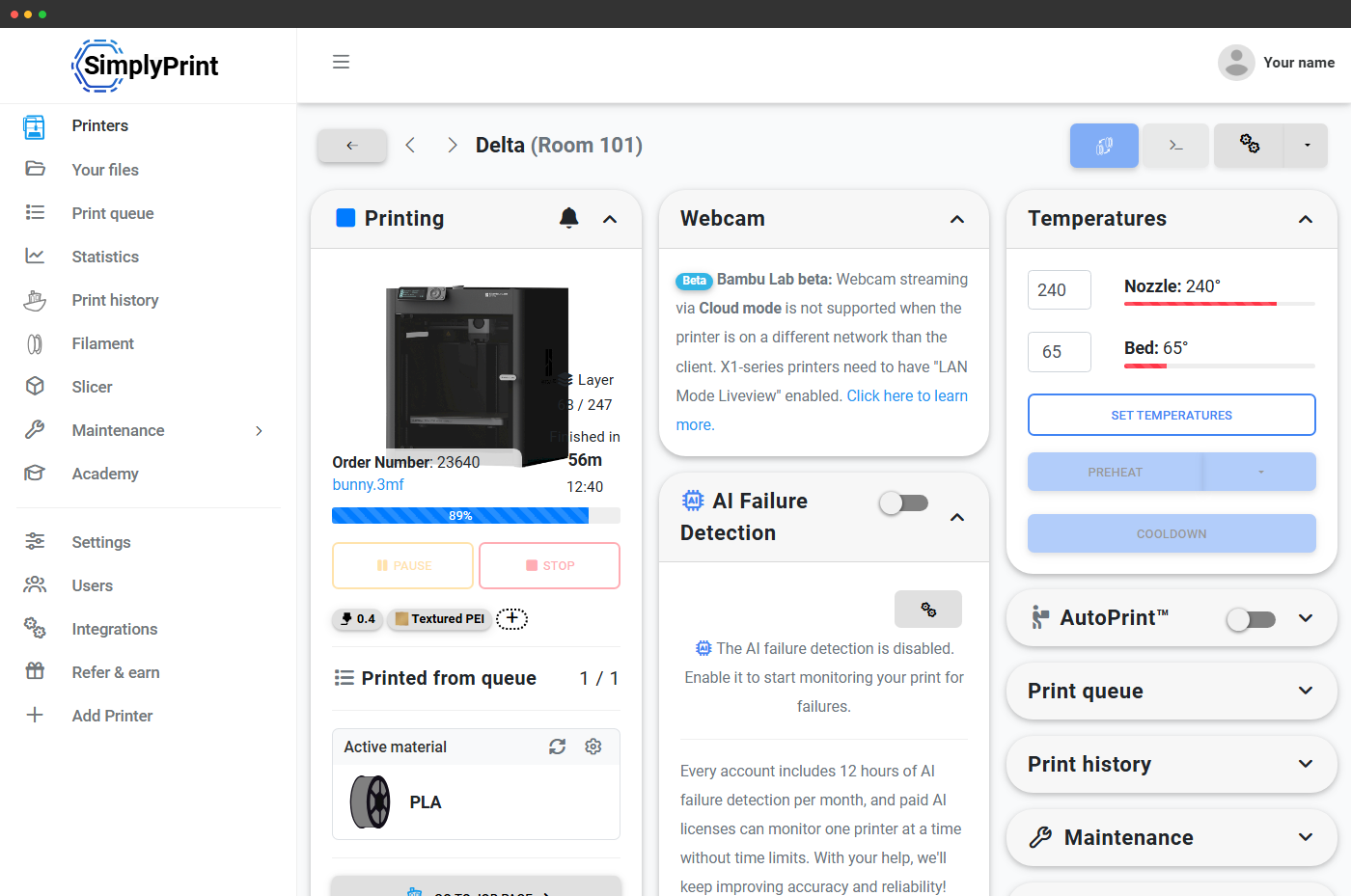
Three ways to mark a bed clear
Tap the button on the printer card, let AutoPrint hardware clear it for you, or let our AI bed check confirm the bed is empty between prints. Pick what suits your setup - they all feed into the same good-versus-bad decision and start-next workflow.
Three ways to clear the bed - same deliberate good/bad decision underneath
Pick the workflow that fits your setup. The manual button is the simplest, AutoPrint hardware skips the tap, and AI bed check is the safety net that catches what humans and machines miss. They all feed into the same good-versus-bad decision and start-next behaviour - so you can mix and match across a fleet without two different mental models.
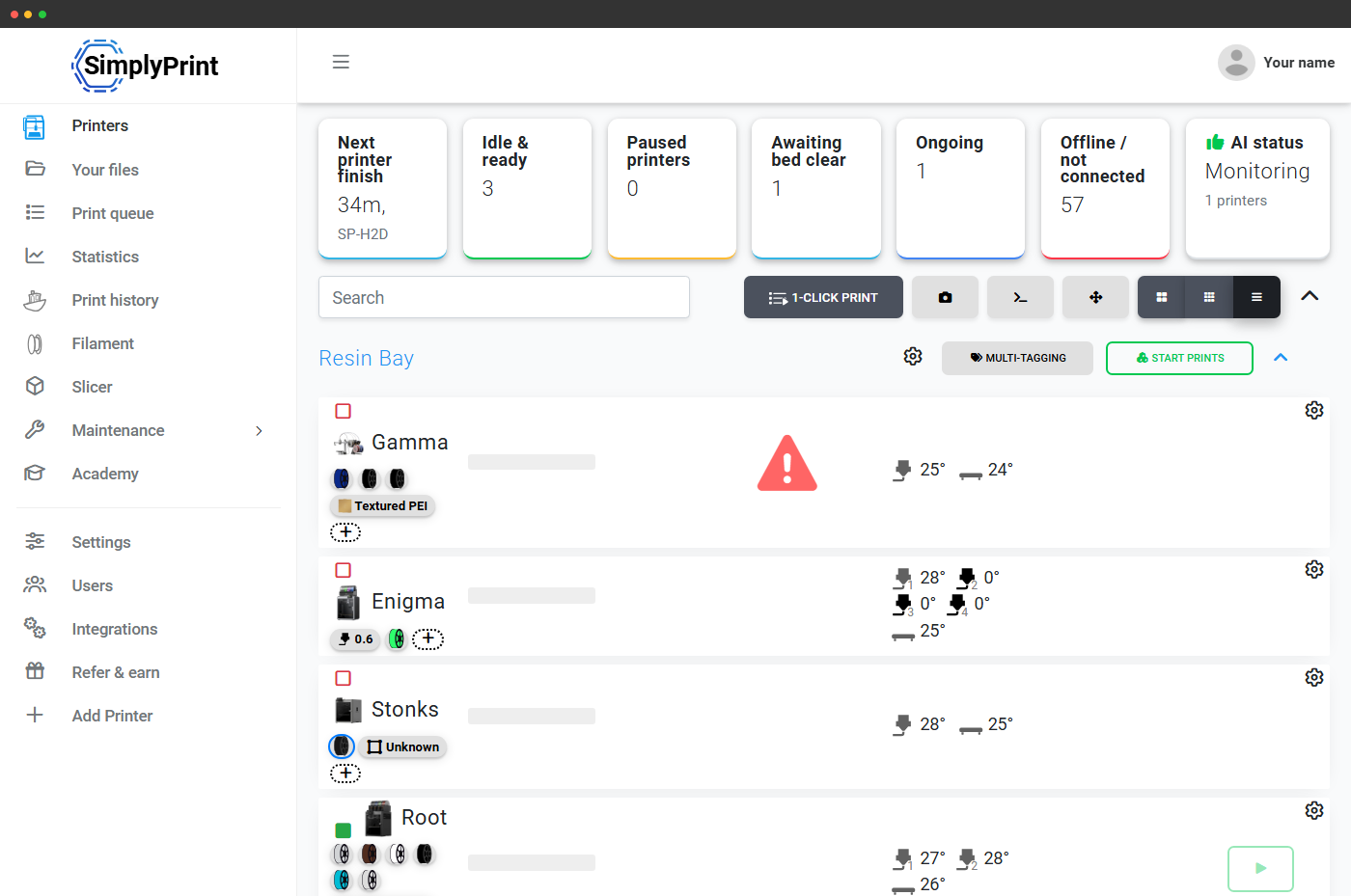
Every printer card has a "bed cleared" action after a print completes. Tap it, then mark the result good or bad. SimplyPrint clears the printer for the next job and - if you have 1-Click print on - starts the next matching item from your queue.
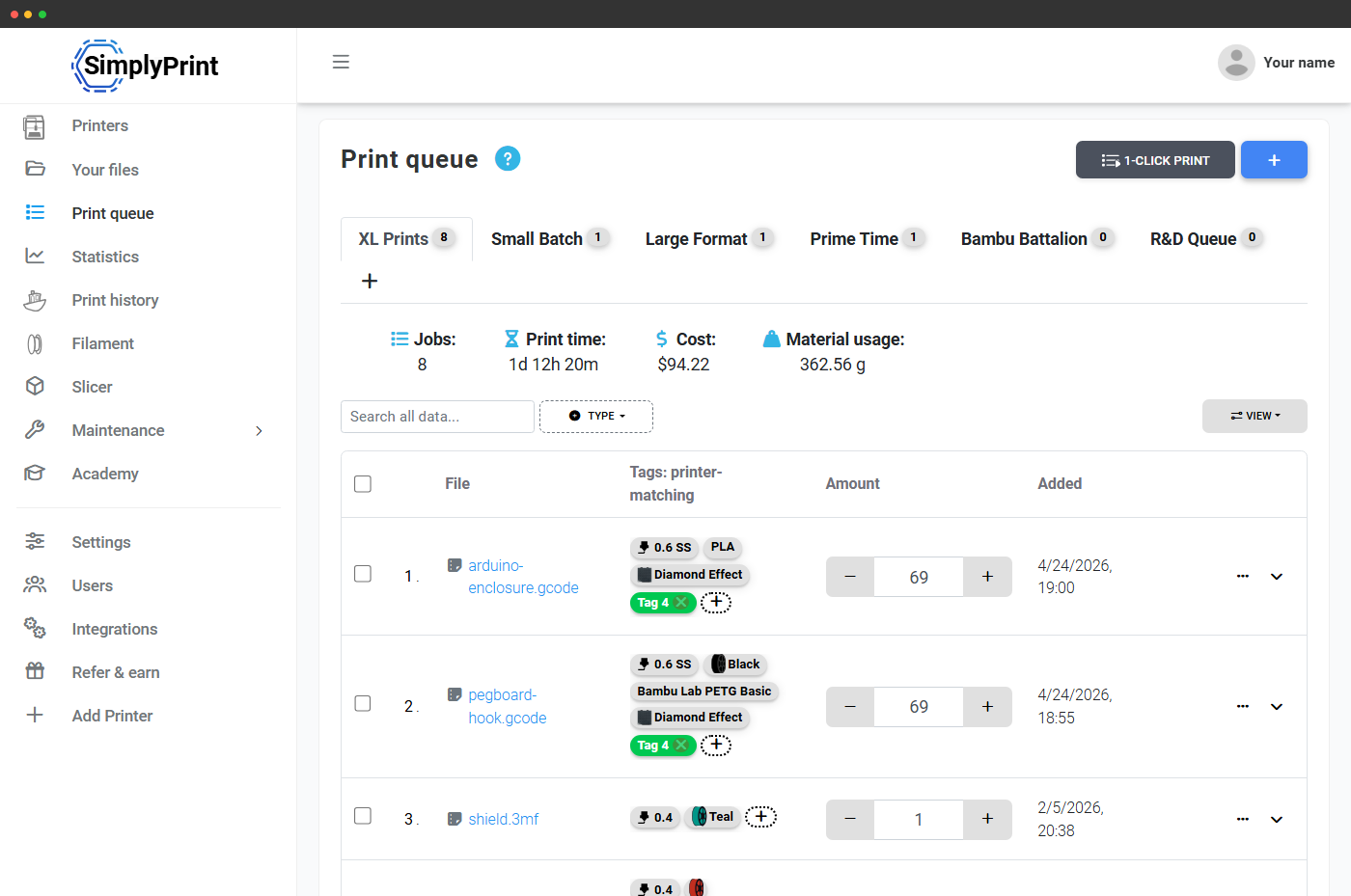
When you mark a finished print as bad on the clear-bed step, SimplyPrint flips the print job's rating to failed and returns the queue item to the queue so it runs again. No re-uploading, no re-slicing - one click that turns "that one came out warped" into "the next printer that matches will retry it." Counters on the user file are corrected too.
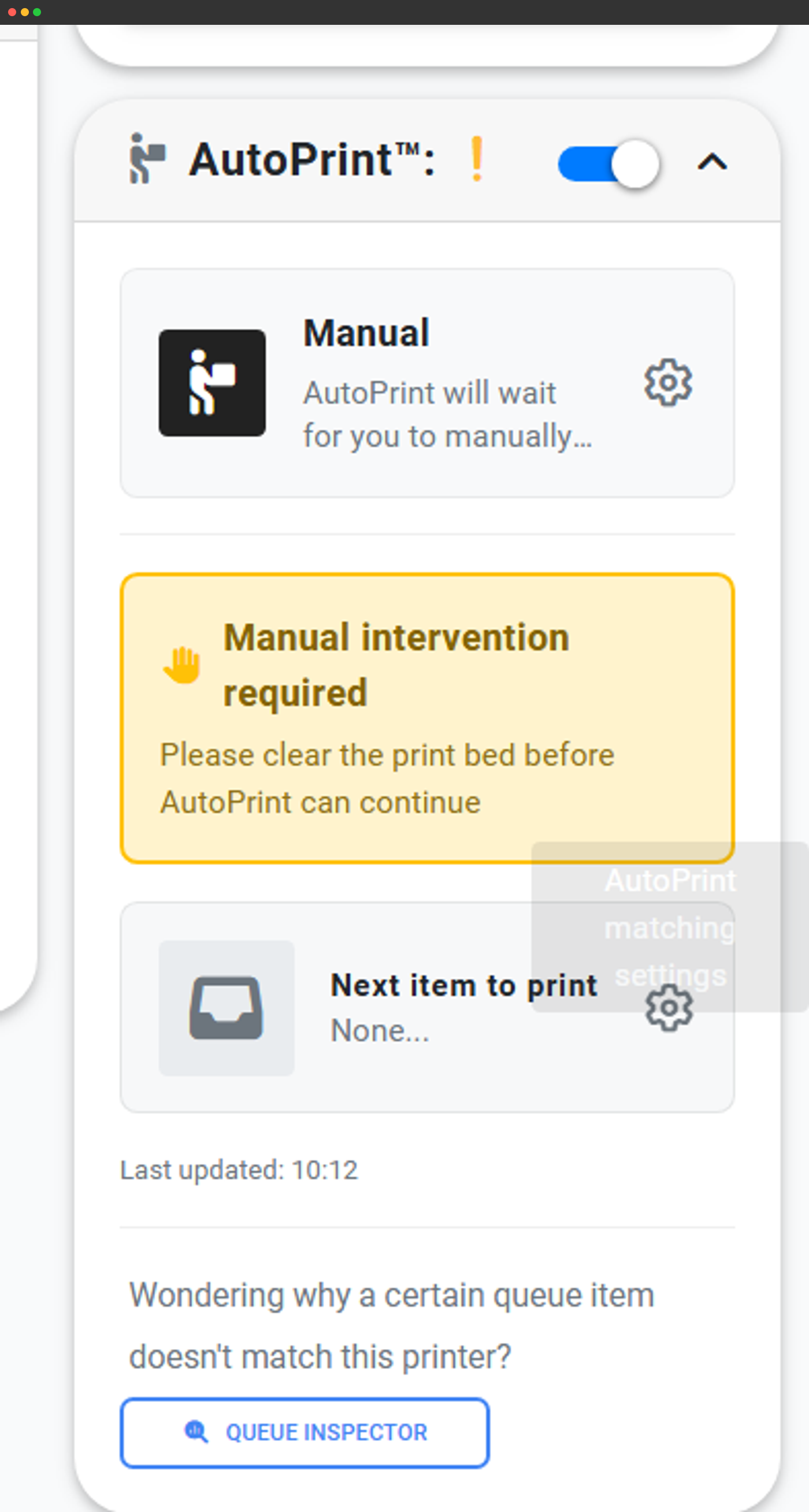
Pair clear-bed with an AutoPrint-compatible bed clearer (AutoClear for the Bambu Lab X1C and P1S, FarmLoop, JobOx, 3DPrintomat, ChituPlateCycler, SwapMod, or your own bed-clear gcode macro - and any other AutoPrint-compatible integration listed on the AutoPrint feature page). The bed is cleared physically at the end of every print, SimplyPrint sees the clear, the next compatible job starts - while you're at the gym or asleep.
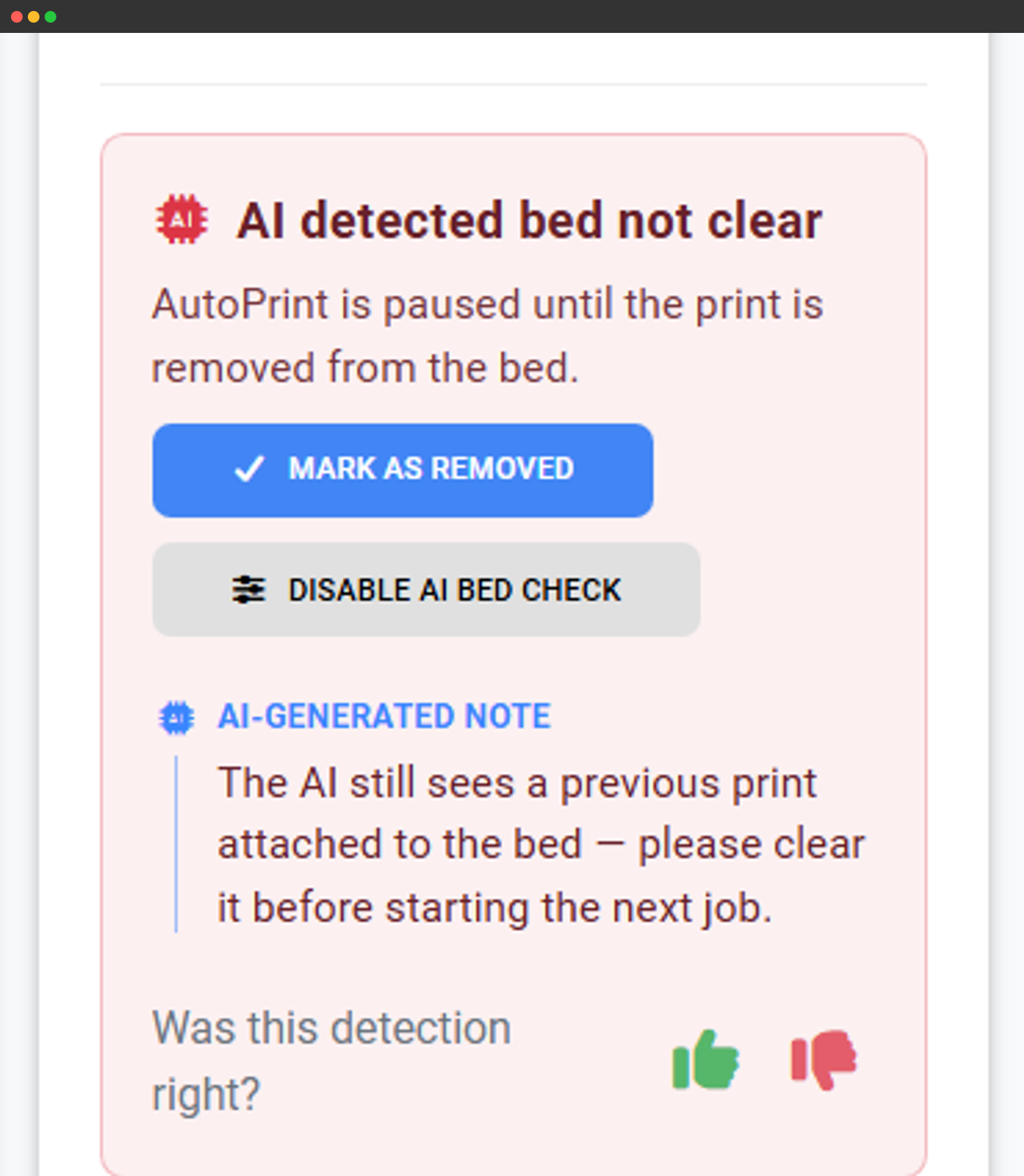
Turn on AI bed check and SimplyPrint's camera AI watches the bed between prints. If the part is still sitting there, the next print stays paused so the printer never starts a job on top of yesterday's. Stack it on top of AutoPrint hardware or the manual button - whichever path you use, AI is the safety net that prevents head crashes.
Frequently asked questions
What plan do I need?
Does it auto-start the next print?
What happens if I forget to clear the bed?
What if the printer sits in 'finished' state for hours?
What does "good" vs "bad" actually do?
Can I customise the workflow?
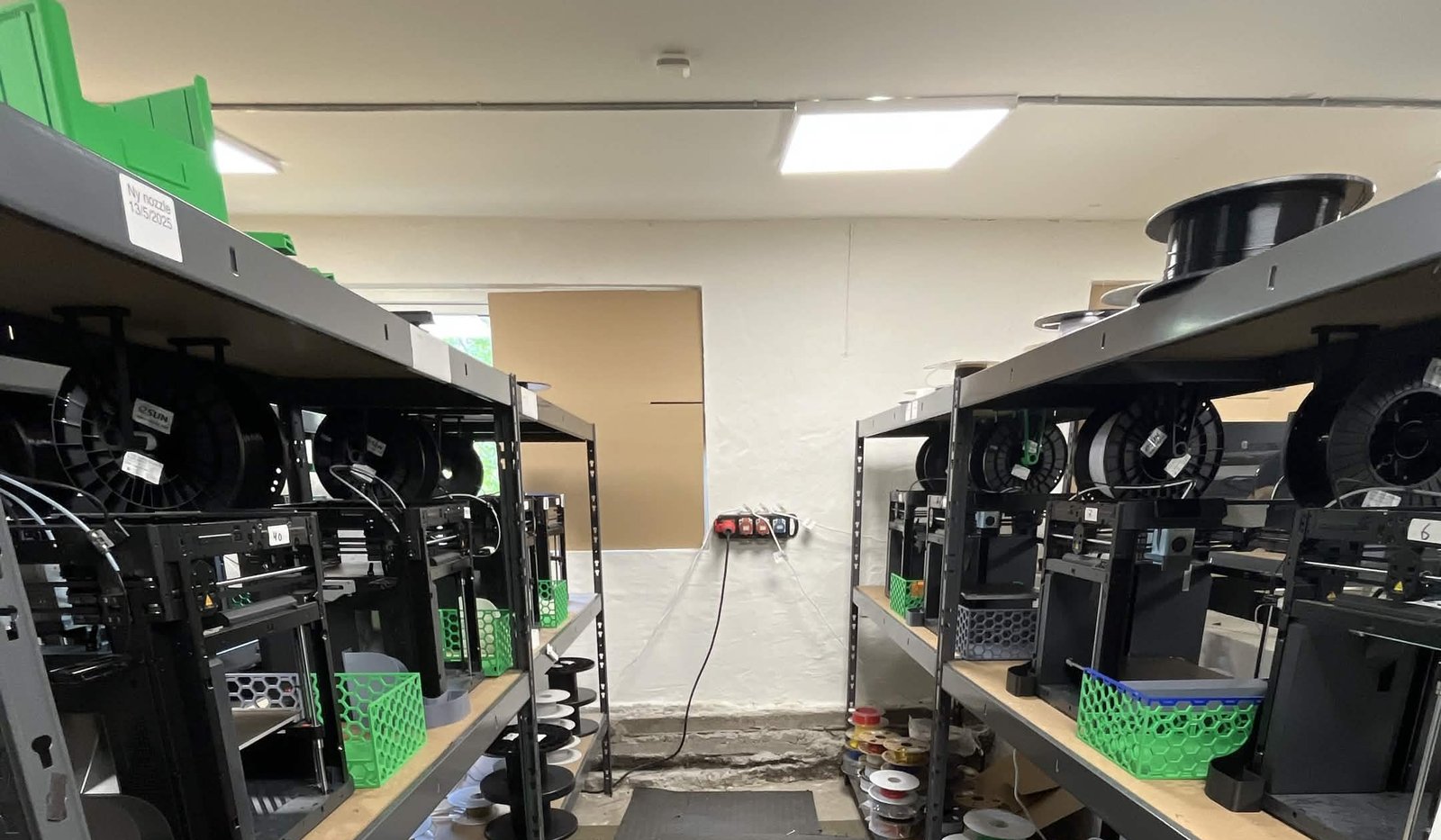
See how Weshape uses Clear Bed to run ~50 printers
Lights-out automation: two people run a ~50-printer Bambu farm where the print side is hands-off, order to shipped part, and they turned that same pipeline into an EU print-on-demand service.