
Fusion 360
स्लाइसिंग और प्रिंटिंग के लिए अपने CAD मॉडल सीधे Fusion 360 से SimplyPrint को भेजें
Get it on the Autodesk App Store पूरी guide पढ़ें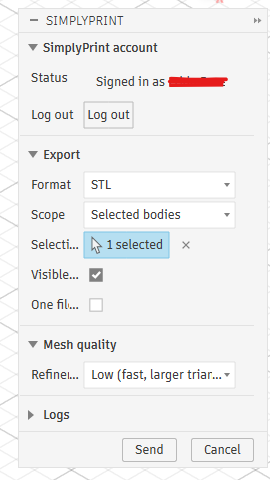
स्लाइसिंग और प्रिंटिंग के लिए अपने CAD मॉडल सीधे Fusion 360 से SimplyPrint को भेजें
Get it on the Autodesk App Store पूरी guide पढ़ें
SimplyPrint को Autodesk Fusion 360 का समर्थन प्राप्त नहीं है, और न ही यह इससे संबद्ध है। हम ट्रेडमार्क और इमेज का इस्तेमाल सिर्फ़ अपने प्लेटफ़ॉर्म के साथ संगतता दिखाने के लिए करते हैं। SimplyPrint के साथ Autodesk Fusion 360 हार्डवेयर का इस्तेमाल Autodesk Fusion 360 की मंशा के अनुसार न हो, यह संभव है। सभी अधिकार संबंधित मालिकों के हैं।
The SimplyPrint add-in for Autodesk Fusion 360 bridges the gap between CAD design and 3D printing. Model in Fusion, then send your design straight to your printer in a single click - no separate export step, no juggling files between programs.
New to this? Read the full walkthrough: how to 3D print from Fusion 360.
The add-in adds a SimplyPrint button to Fusion's UTILITIES panel (and next to the built-in 3D Print button on the MAKE panel). Pick STL or 3MF, choose what to export, tweak the mesh quality, hit Send, and SimplyPrint opens in your browser with the model loaded - ready to slice, queue, or print.
Get the add-in from the Autodesk App Store:
Get it on the Autodesk App StoreClose Fusion 360, then run the downloaded installer - it drops the add-in straight into Fusion's AddIns folder on Windows or macOS.
Open Fusion 360, press Shift+S, and open the Add-Ins tab.
Select SimplyPrintExport, click Run, and tick Run on Startup so it loads automatically next time.
Click the SimplyPrint button on the UTILITIES panel (or next to the 3D Print button on MAKE) to open the dialog. Click Log in the first time - a browser tab opens, you approve the request, and you're set for future sessions. Pick the format, scope, units and mesh quality you want, then hit Send. Your browser opens SimplyPrint with the model uploaded, ready to slice, queue, or print on one or more printers.
SimplyPrint add-in इंस्टॉल करें
Get it from the Autodesk App Store and run the installer (Windows or macOS). Then in Fusion press Shift+S, open the Add-Ins tab, run SimplyPrintExport and tick Run on Startup.
एक बार लॉग इन करें
UTILITIES पैनल पर SimplyPrint बटन क्लिक करके Log in चुनें। ब्राउजर टैब खुलेगा, अनुरोध स्वीकार करें और अगली बार के लिए सत्र याद रखा जाएगा।
अपना मॉडल भेजें और प्रिंट करें
STL या 3MF चुनें, export की जाने वाली चीज़ और mesh quality चुनें, फिर Send दबाएँ। SimplyPrint आपके browser में model लोड करके खुलेगा, जो slice करने, कतार में डालने या प्रिंट करने के लिए तैयार होगा।
Fusion 360 के लिए SimplyPrint add-in इंस्टॉल करें, फिर अपने मॉडल को STL या 3MF के रूप में export करके भेजने के लिए SimplyPrint बटन क्लिक करें। मॉडल आपके ब्राउज़र में SimplyPrint में खुलता है और slice, कतार या प्रिंट के लिए तैयार रहता है। मैन्युअल export या SD कार्ड की जरूरत नहीं।
हाँ। Add-in को install और इस्तेमाल करना मुफ़्त है। SimplyPrint के मुफ़्त plan से आप एक प्रिंटर जोड़कर wirelessly print कर सकते हैं।
Yes. The add-in runs on both Windows and macOS - install it from the Autodesk App Store on either platform.
दोनों काम करते हैं। STL सार्वभौमिक mesh प्रारूप है, जबकि 3MF इकाइयां और रंग सुरक्षित रखता है। भेजने से पहले आप प्रारूप, बॉडी या कंपोनेंट का दायरा और mesh गुणवत्ता चुनते हैं।
हाँ। Model के SimplyPrint में आने के बाद आप उसे slice करके अपने खाते के किसी भी प्रिंटर पर print कर सकते हैं, यानी OctoPrint, Klipper या built-in integration के जरिए 140+ brands और 600+ models पर।
SimplyPrint के इंटीग्रेशन से एप्लिकेशन आपके 3D प्रिंटरों के साथ और आपके 3D प्रिंटर अन्य एप्लिकेशन के साथ इंटरैक्ट कर सकते हैं। इससे अनगिनत संभावनाएँ खुलती हैं, और हमारा दृढ़ विश्वास है कि आपका 3D प्रिंटर एक IOT डिवाइस की तरह काम करे, जो आपकी कल्पना के हर एप्लिकेशन के साथ मिलकर काम करे!
इसीलिए SimplyPrint की team popular platforms, slicers और applications के official integrations देती है, और users को हमारी API से custom integrations या approved third-party vendors को सभी SimplyPrint users के लिए "Log in with SimplyPrint" method , "OAuth2" method से, integrations बनाने देती है।
यदि आप डेवलपर हैं और SimplyPrint के लिए इंटीग्रेशन बनाना चाहते हैं, तो कृपया इस विषय पर हमारा दस्तावेज पढ़ें।
अगर आप खुद developer नहीं हैं लेकिन किसी खास application का integration चाहते हैं, तो देखें कि वह हमारी roadmap या suggestion list में है या नहीं। अगर नहीं, तो बेझिझक उसका सुझाव दें!