
Alibre Design
Envoyez vos modèles CAO directement depuis Alibre Design vers SimplyPrint pour le slicing et l’impression
Télécharger l’installateur Lire le guide complet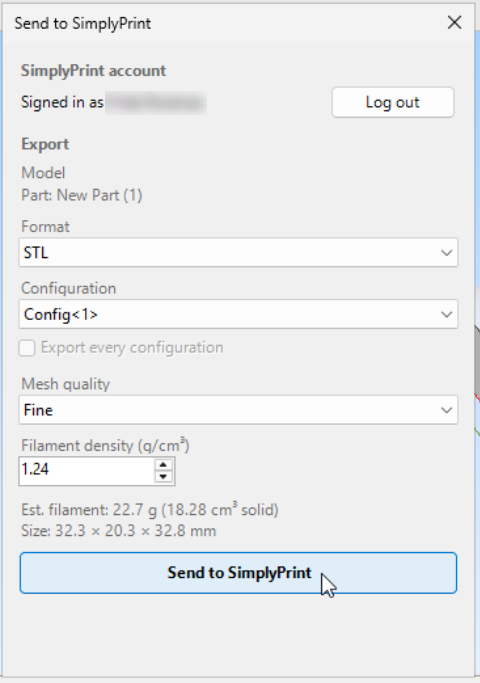
Envoyez vos modèles CAO directement depuis Alibre Design vers SimplyPrint pour le slicing et l’impression
Télécharger l’installateur Lire le guide complet
SimplyPrint n’est pas approuvé par Alibre, LLC et n’y est pas affilié. Nous utilisons les marques et les images uniquement pour indiquer la compatibilité avec notre plateforme. L’utilisation de matériel Alibre, LLC avec SimplyPrint peut ne pas correspondre à l’usage prévu par Alibre, LLC. Tous les droits appartiennent à leurs propriétaires respectifs.
Le module complémentaire SimplyPrint pour Alibre Design relie la conception CAO à l’impression 3D. Modélisez dans Alibre, puis envoyez votre pièce ou assemblage directement à votre imprimante en un clic, sans exportation séparée ni transfert de fichiers entre logiciels.
Le module ajoute un bouton SimplyPrint à l’onglet Add-on du ruban Alibre, dans les espaces de travail Pièce et Assemblage. Sélectionnez STL ou 3MF, choisissez la configuration, les corps ou les composants à exporter, réglez la qualité du maillage et vérifiez le poids estimé du filament avant de cliquer sur Envoyer. SimplyPrint s’ouvre alors dans votre navigateur avec le modèle chargé, prêt à être slicé, ajouté à la file ou imprimé.
Télécharger l’installateur :
Télécharger SimplyPrintAlibre-installer.exeFaites un clic droit sur l’installateur et choisissez Exécuter en tant qu’administrateur. L’enregistrement du module nécessite des droits d’administrateur. Si Windows SmartScreen signale un éditeur inconnu, cliquez sur Informations complémentaires → Exécuter quand même.
Suivez l’installateur. Il copie le module dans %PROGRAMDATA%\Alibre AddOns\SimplyPrint et l’enregistre automatiquement dans Alibre.
Ouvrez Alibre Design, ou redémarrez-le s’il était déjà ouvert. Dans l’onglet Add-on du ruban, ouvrez Add-on Manager, cochez SimplyPrint, puis cliquez sur OK. Le bouton SimplyPrint apparaît ensuite dans l’onglet Add-on lorsqu’une pièce ou un assemblage est ouvert.
Télécharger le fichier zip :
Télécharger SimplyPrintAlibre.zipExtrayez le fichier zip dans %PROGRAMDATA%\Alibre AddOns\SimplyPrint afin que les fichiers .dll, .adc et l’icône se trouvent directement dans ce dossier.
Depuis une invite de commandes administrateur, enregistrez le module en ajoutant une valeur de registre qui indique ce dossier à Alibre :
reg add "HKLM\SOFTWARE\Alibre Design Add-Ons" /v 5A71F41D-B204-4A72-BE0B-6B4A42EC5EF0 /t REG_SZ /d "%PROGRAMDATA%\Alibre AddOns\SimplyPrint" /fDémarrez Alibre, ouvrez Add-on Manager dans l’onglet Add-on du ruban, cochez SimplyPrint, puis cliquez sur OK.
Ouvrez une pièce ou un assemblage, puis cliquez sur le bouton SimplyPrint dans l’onglet Add-on du ruban pour ouvrir la boîte de dialogue. Cliquez sur Se connecter lors de la première utilisation. Un onglet de navigateur s’ouvre : approuvez la demande, puis la connexion sera mémorisée. Choisissez le format, la configuration, l’étendue et la qualité de maillage. La boîte de dialogue affiche le poids estimé du filament et les dimensions du cadre englobant du modèle. Cliquez ensuite sur Envoyer à SimplyPrint. SimplyPrint s’ouvre dans votre navigateur avec le modèle importé, prêt à être slicé, ajouté à la file ou imprimé sur une ou plusieurs imprimantes.
Installer et activer l’extension SimplyPrint
Exécutez l’installateur Windows en tant qu’administrateur, ou enregistrez manuellement le zip. Dans Alibre, ouvrez ensuite Add-on Manager depuis l’onglet Add-on du ruban, cochez SimplyPrint et cliquez sur OK.
Se connecter une fois
Cliquez sur le bouton SimplyPrint dans l’onglet Add-on du ruban, puis choisissez Se connecter. Un onglet de navigateur s’ouvre : approuvez la demande et la session sera mémorisée.
Envoyer votre modèle et imprimer
Choisissez STL ou 3MF, la configuration, la portée et la qualité du maillage, vérifiez l’estimation du poids, puis cliquez sur Envoyer. SimplyPrint s’ouvre dans votre navigateur avec le modèle chargé, prêt à être tranché, mis en file d’impression ou imprimé.
Installez l’extension SimplyPrint pour Alibre Design, puis cliquez sur le bouton SimplyPrint dans l’onglet Add-on du ruban pour exporter votre pièce ou assemblage au format STL ou 3MF et l’envoyer. Le modèle s’ouvre dans SimplyPrint dans votre navigateur, prêt à être slicé, ajouté à la file d’attente ou imprimé, sans export manuel ni carte SD.
Oui. Le module complémentaire est gratuit à installer et à utiliser. Le forfait gratuit de SimplyPrint permet aussi de connecter une imprimante et d’imprimer sans fil.
Non. Alibre Design fonctionne uniquement sous Windows, tout comme le module complémentaire. Le programme d’installation Windows l’enregistre pour vous. Vous pouvez aussi enregistrer manuellement le zip depuis une invite de commandes administrateur.
Les deux fonctionnent. STL est le format de maillage universel, tandis que 3MF conserve les unités et les métadonnées de chaque corps. Alibre n’exporte pas nativement en 3MF : le module le génère pour vous. Avant l’envoi, vous choisissez le format, la configuration, les corps ou composants concernés et la qualité du maillage.
Oui. Les fichiers Alibre peuvent contenir plusieurs variantes de conception sous forme de configurations. Le module complémentaire permet d’envoyer une seule configuration, uniquement celle qui est active ou toutes les configurations à la fois. Chacune devient un fichier distinct dans SimplyPrint.
Avant l’envoi, la boîte de dialogue affiche une estimation du poids du filament selon le volume solide du modèle, ainsi que ses dimensions hors tout. La densité est réglable, avec le PLA par défaut, pour correspondre au matériau prévu. Pour une valeur précise, slicez le modèle dans SimplyPrint après l’envoi.
Oui. Une fois le modèle dans SimplyPrint, vous pouvez le slicer et l’imprimer sur toute imprimante de votre compte, parmi plus de 140 marques et 600 modèles via OctoPrint, Klipper ou une intégration native.
L’intégration pour SimplyPrint permet aux applications d’interagir avec vos imprimantes 3D, et à vos imprimantes 3D d’interagir avec d’autres applications. Les possibilités sont infinies et nous sommes convaincus que votre imprimante 3D doit pouvoir fonctionner comme un appareil IOT, avec toutes les applications imaginables !
C’est pourquoi l’équipe derrière SimplyPrint s’efforce de fournir des intégrations officielles pour les plateformes, slicers et applications les plus populaires, tout en permettant à nos utilisateurs de créer des intégrations personnalisées avec notre API, ou à des fournisseurs tiers approuvés de créer des intégrations utilisables par tous les utilisateurs de SimplyPrint, via une méthode « Se connecter avec SimplyPrint » (avec la méthode « OAuth2 »).
Si vous êtes développeur et souhaitez créer une intégration pour SimplyPrint, consultez notre documentation à ce sujet.
Si vous n’êtes pas développeur vous-même, mais souhaitez voir une intégration pour une application spécifique, vérifiez si elle figure déjà dans notre feuille de route ou liste de suggestions, et sinon, n’hésitez pas à la suggérer !