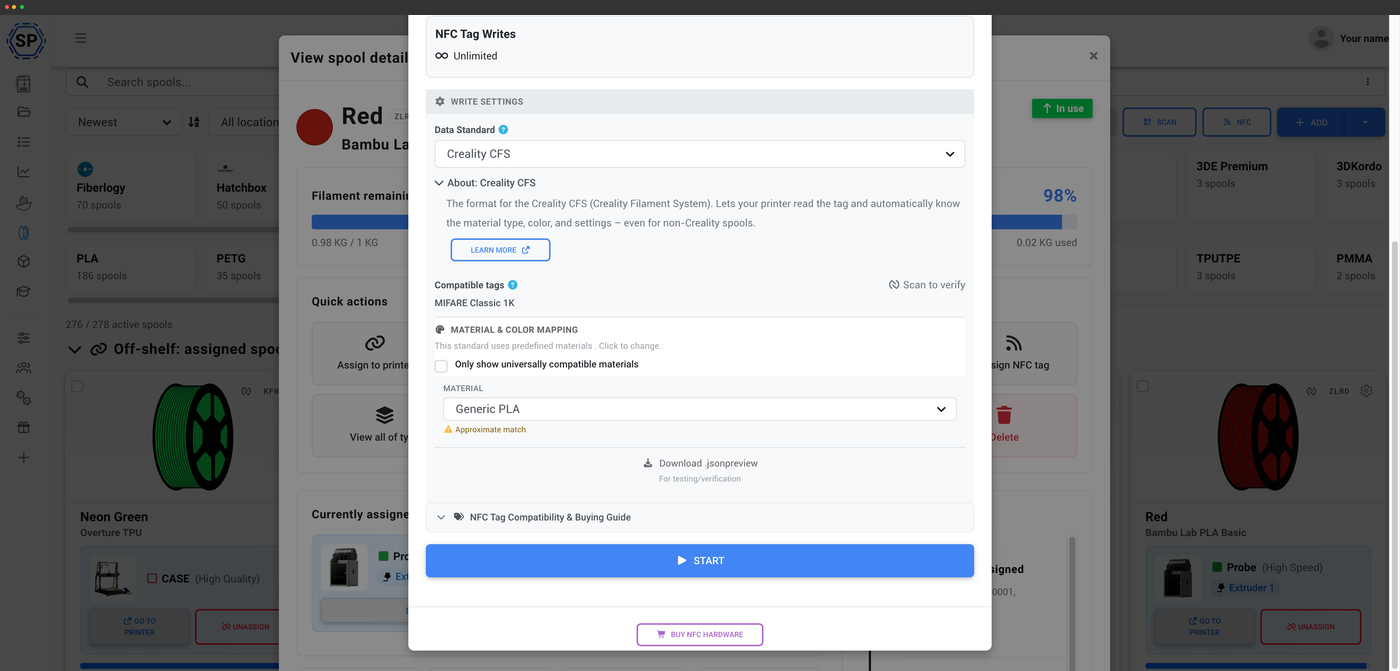
Make the CFS work with any filament
Out of the box the CFS only really trusts tagged spools. SimplyPrint lets you write a CFS tag to any spool you own, so the box accepts your cheaper or specialty filament just as readily as branded rolls - and every one of them lands in a single, automatically-tracked inventory.
How Creality CFS NFC works
The Creality CFS uses MIFARE Classic tags, secured with AES keys derived from each tag's UID. SimplyPrint handles that key derivation for you, so writing a CFS-compatible tag is a single step rather than a cryptography project. Once written, the CFS reads the spool's identity on load and knows exactly what it's running.
How to use the Creality CFS with SimplyPrint
Three steps to make the box accept any filament you load.
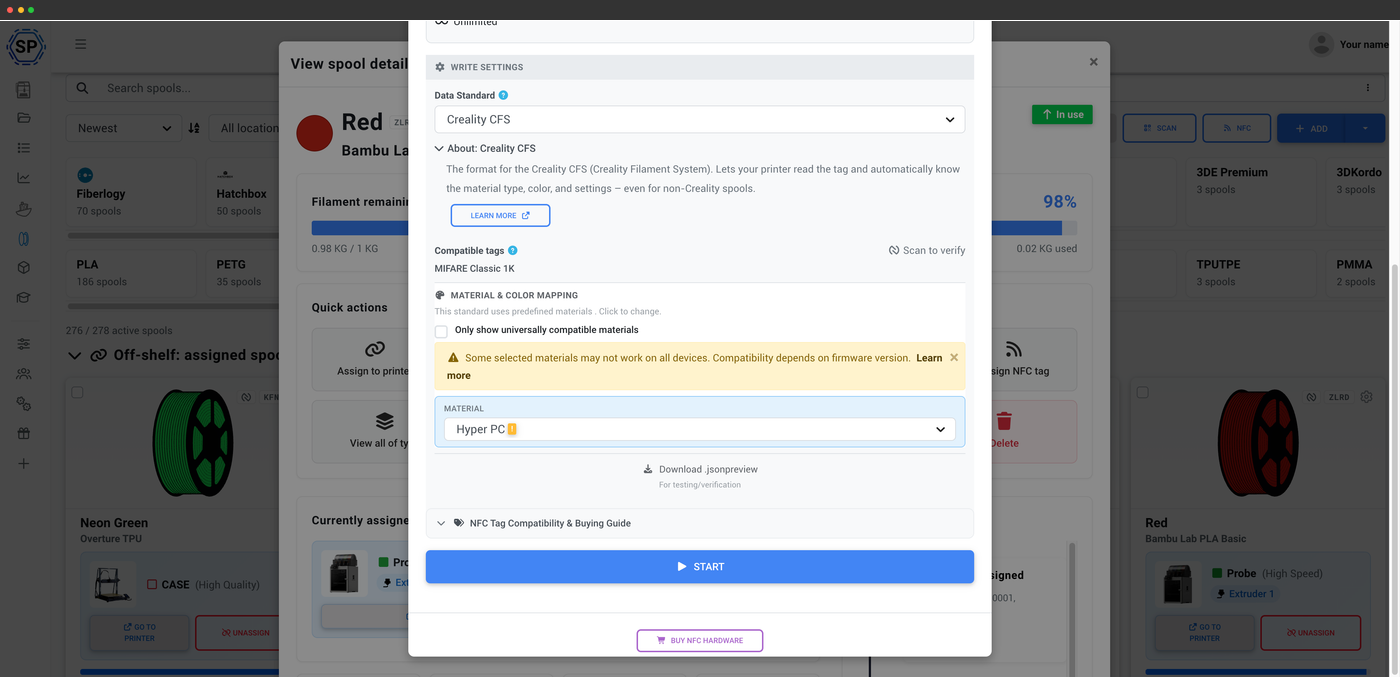
Map the material, then write
Pick the CFS material type and colour the box expects
When you write a CFS tag, SimplyPrint lets you map the spool to a material type and colour the box understands. If a material isn't a known CFS type, you'll see a clear compatibility note before writing - so the tag you encode is one the CFS will actually accept on load.
Write CFS tags from Android or your desktop
Because the CFS uses MIFARE Classic, you write its tags with the SimplyPrint Android app or the desktop NFC Agent and a PC/SC USB reader. iPhones can't write MIFARE tags - that's an Apple hardware limitation, not a SimplyPrint one - so reach for Android or the desktop NFC Agent for CFS spools.
About the desktop NFC AgentCreate CFS tags the box reads, even for third-party spools
Using third-party, non-Creality spools? Create RFID tags with SimplyPrint that the Creality CFS can actually read. Once you write a CFS tag, the box recognizes that spool regardless of filament brand, so you're free to run whatever PLA, PETG or specialty material you like and still get proper identification and tracking.
Usage tracked automatically
SimplyPrint deducts filament as you print, analyzing the G-code and subtracting grams from the assigned spool when the job ends. Combined with CFS tag writing, every spool you load is both recognized by the box and kept accurate in your inventory, with no scale involved.
How automatic tracking worksEvery CFS, one inventory
Running several Creality printers with CFS units? SimplyPrint rolls every CFS slot across every printer into one live inventory you can search, group and filter - so you always know which box holds the filament you need before you start a job.
Creality CFS multi-materialPlan access: what's included?
Reading CFS tags and the filament manager are on every plan. Writing CFS tags uses your monthly NFC-write allowance.
| Feature / Limit | Free | Basic | Pro | Print Farm | Enterprise | School | Cloud Slicer | Filament Manager |
|---|---|---|---|---|---|---|---|---|
|
Filament manager
Spool records and automatic usage deduction, on every plan including Free.
|
||||||||
|
NFC tag writes per month
How many NFC tags you can write to spools each month.
|
10 | 30 | 100 | 10 |
Want to learn more about our plans?
View full pricing & feature comparisonFrequently asked questions
How do I use SimplyPrint with the Creality CFS?
Can I write Creality CFS tags from my phone?
Will the CFS accept non-Creality filament once I've written a tag?
What blank tags do I need?
How does the key security work?
Is usage still tracked after I write a tag?
Compatible Creality CFS hardware
Writing CFS tags from desktop needs a USB reader and the free SimplyPrint NFC Agent (Windows, macOS, Linux). The CFS uses MIFARE Classic 1K tags - buy blanks and write your own.
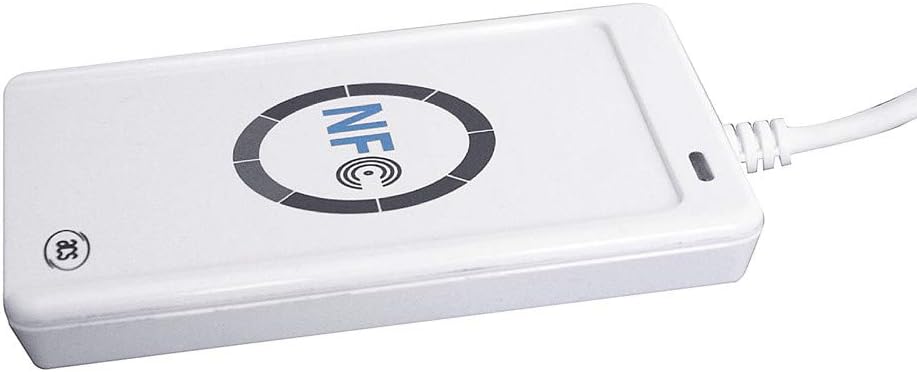
ACS ACR122U
Popular, affordable USB-A reader. Reads and writes MIFARE Classic for CFS tags.
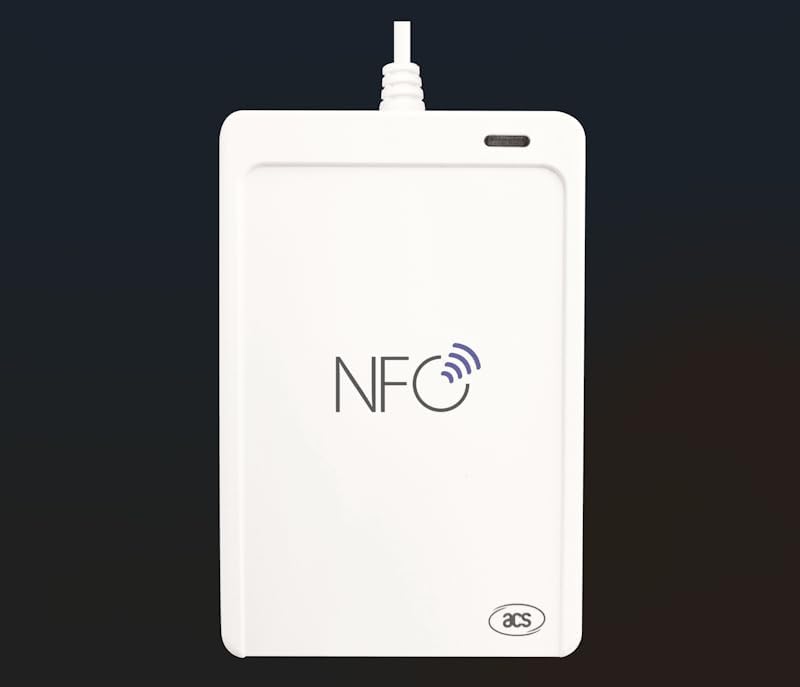
ACS ACR1552U (USB-C)
USB-C reader that handles MIFARE Classic plus iCode SLIX2 / OpenPrintTag if you mix standards.
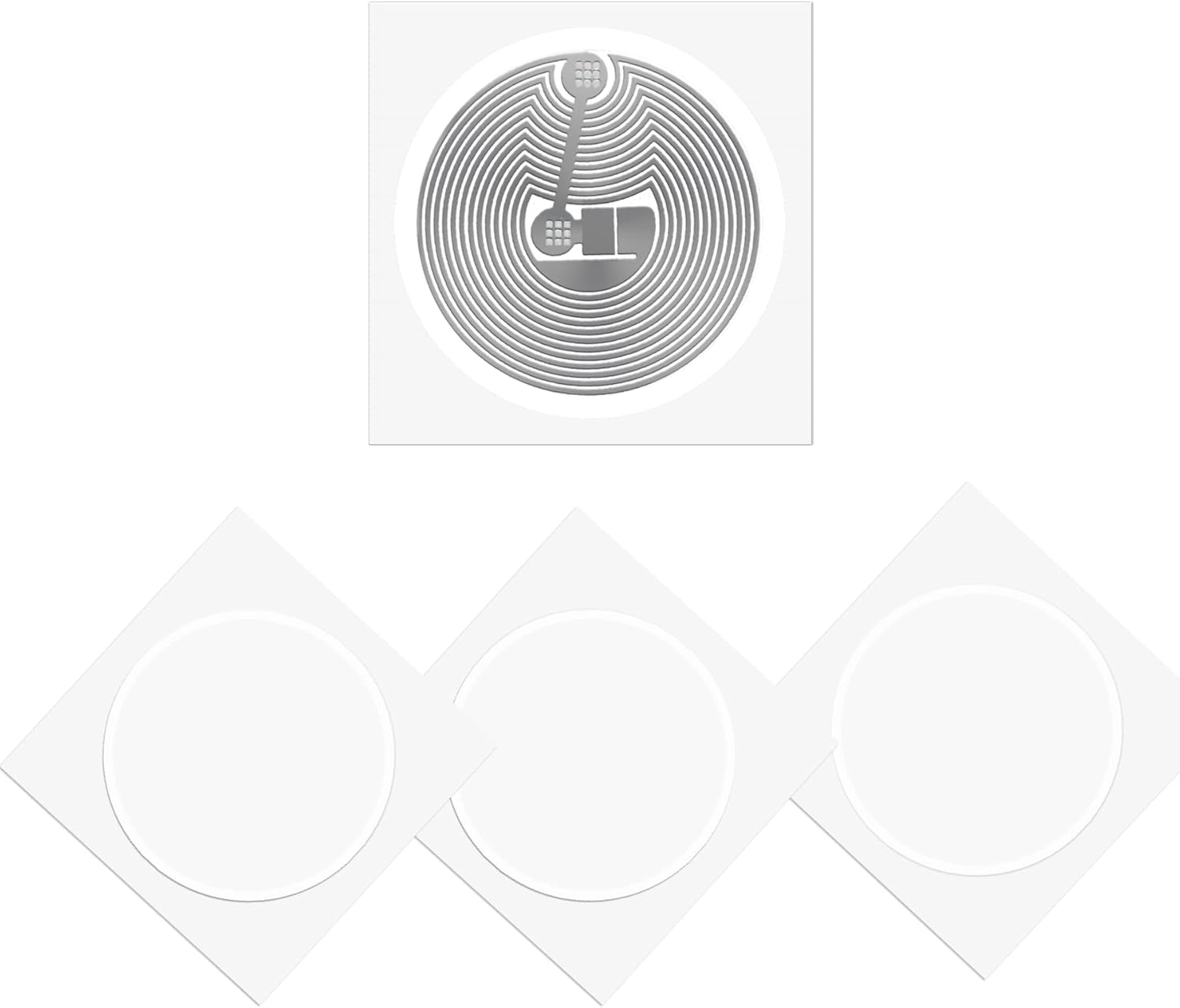
MIFARE Classic 1K sticker tags
The exact tag format the Creality CFS uses. Write them with SimplyPrint and the CFS accepts any brand of filament.
You can also write CFS tags straight from the SimplyPrint Android app. iPhones can't write MIFARE Classic tags.
Some links are affiliate links - SimplyPrint may earn a commission, at no cost to you.